

WP Fluent forms is a drag & drop WordPress form builder plugin from WPManageNinja. Like many other WordPress themes & plugins, Fluent Forms is a freemium plugin.
You can continue using the free form with limited features. This works for most people, or you can invest in the premium version, if you want all the features.
This post focuses on the free version of Fluent Forms. This also tells you, what you don't get when you stick to the free version.
Contents
Who is WP Fluent Forms meant for?
There is a lot you can do with forms plugins. You can create contact forms, calculators, surveys and some forms allow that you to even buy products using payment gateway integrations.
As a free Fluent Form uses, you’ll get most of the features, though not all.
In the later section, we'll see, what all we can do with Fluent forms, apart from creating a simple contact form.
What are the Features of WP Fluent Forms?
If you want to create a simple form with basic user inputs, you can create it in no time. Drag & drop, with some edits, your form is ready to deploy.
Let’s explore the features of Fluent Forms.
Two types of form types
Using Fluent forms you can build two types of forms:
Classical forms (standard conventional forms), and beautiful conversational forms (like the ones Typeform provides).
Fluent Forms provides you the option to choose from some pre-built templates. You can pick the one you want and edit it according to your needs. And, if you want, you can start with a blank form.
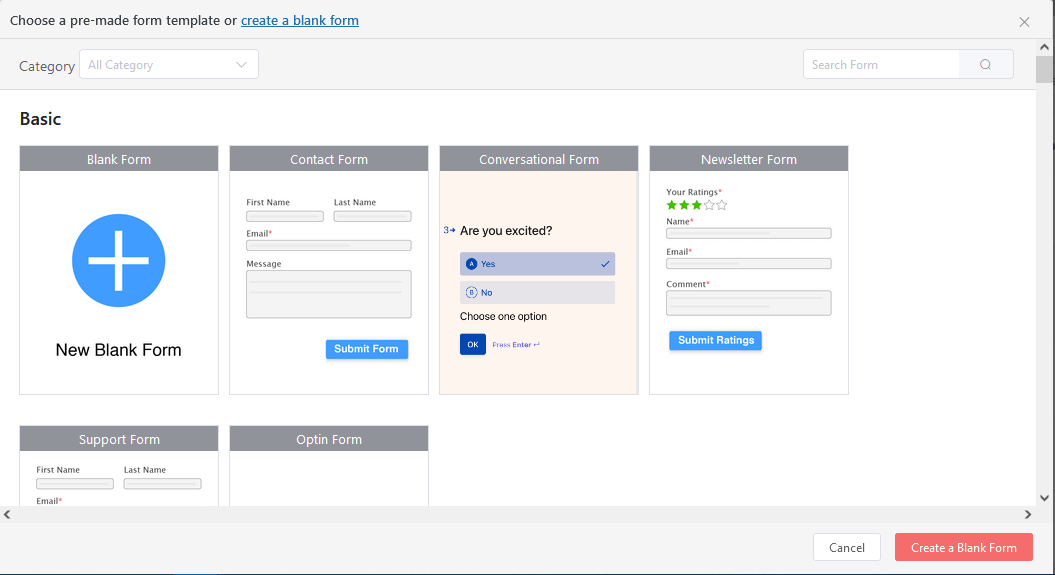
The readymade form templates are grouped into categories:
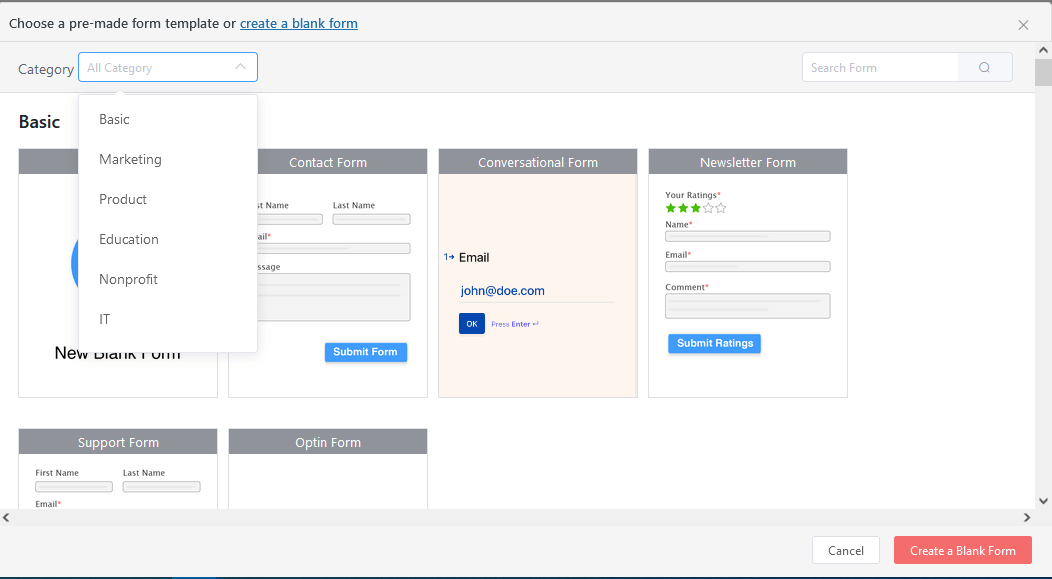
Traditional or Classical forms, look the same as in case of others. Let me talk about the Conversational forms. Having conversational form is enough to make Fluent Forms worth considering.
What are Conversational Forms
These look beautiful and are more effective in getting user inputs than the traditional forms. Each field is displayed on a page or screen of its own. You provide input, press enter and you get to the next page (next input).
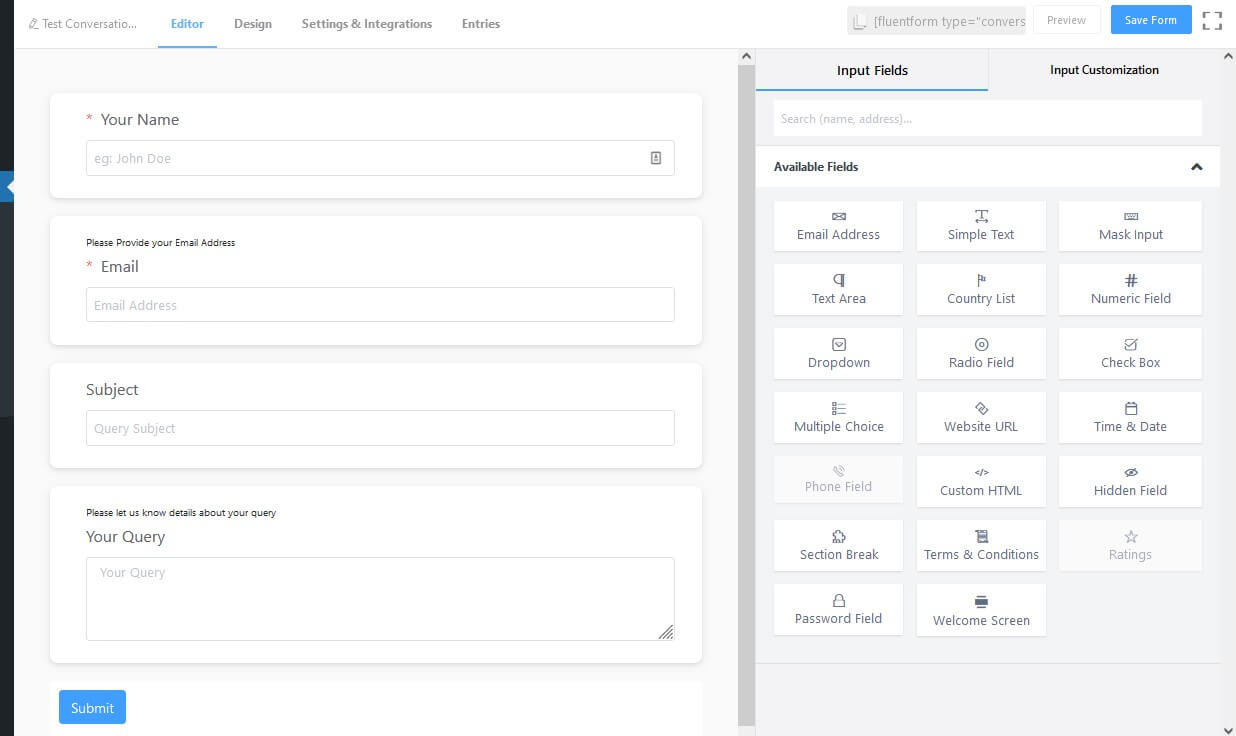
Once created, the this is how conversational form looks in it it's most basic form.

Can we make the conversational form beautiful?
Yes, we can.
You can add Welcome Heading to make it look better.

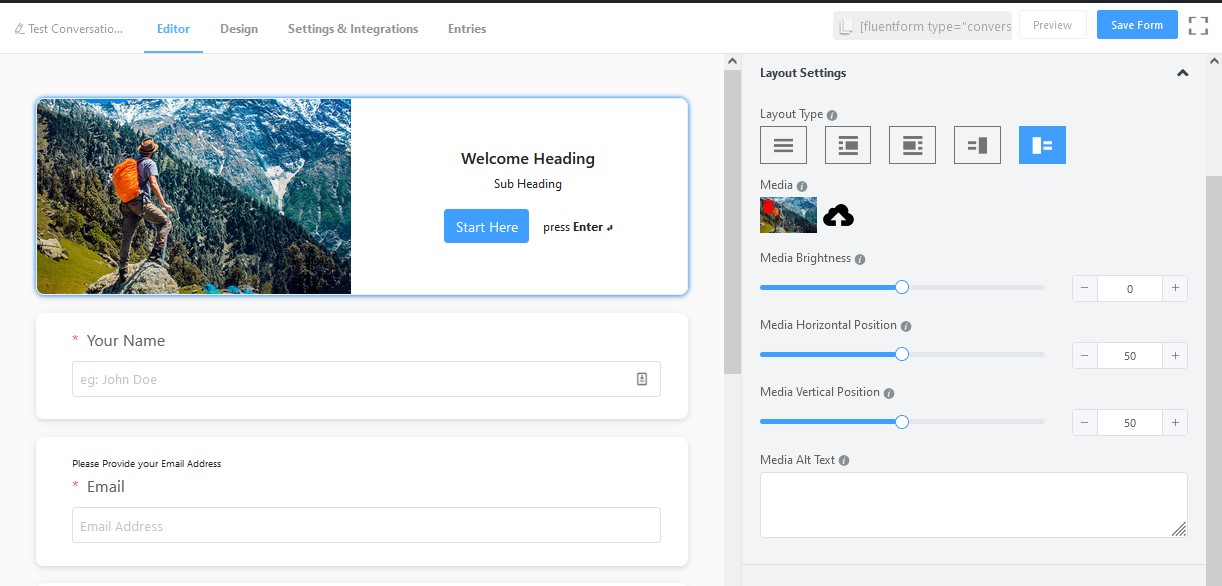
Input Fields & Customization
When you begin creating a form, you get settings on top & on the right side you get fields to choose from. The section on the right side the has two tabs: Input Fields & Field Customization.
Input Fields tab has all the fields to choose from.
The Field Customization tab can be used to change the name, label, placement, and conditional logic, etc.
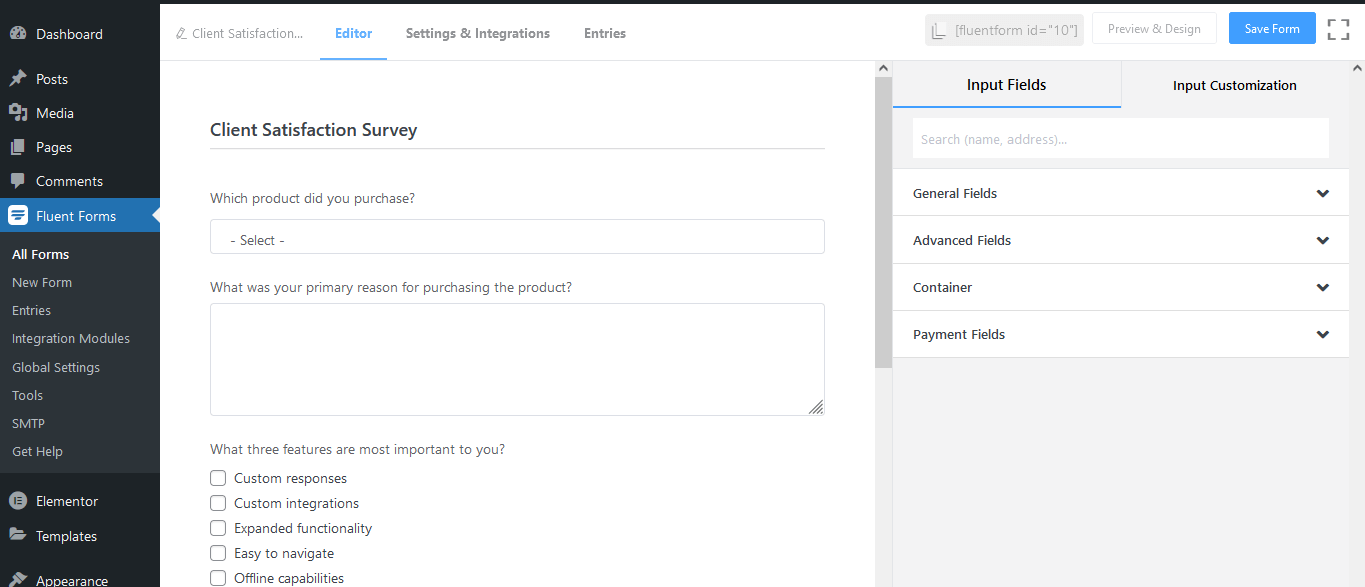
On the right side of the form, you have the whole list of fields grouped in categories – General Fields, Advanced Fields, Container, Payment Fields.
Fields from all the four categories are partially available to the free users, but the Payment category is not available at all.
You can drag the field on to the form & then edit the field according to your needs.
In case you want a row to contain two fields, you can take help of container fields.
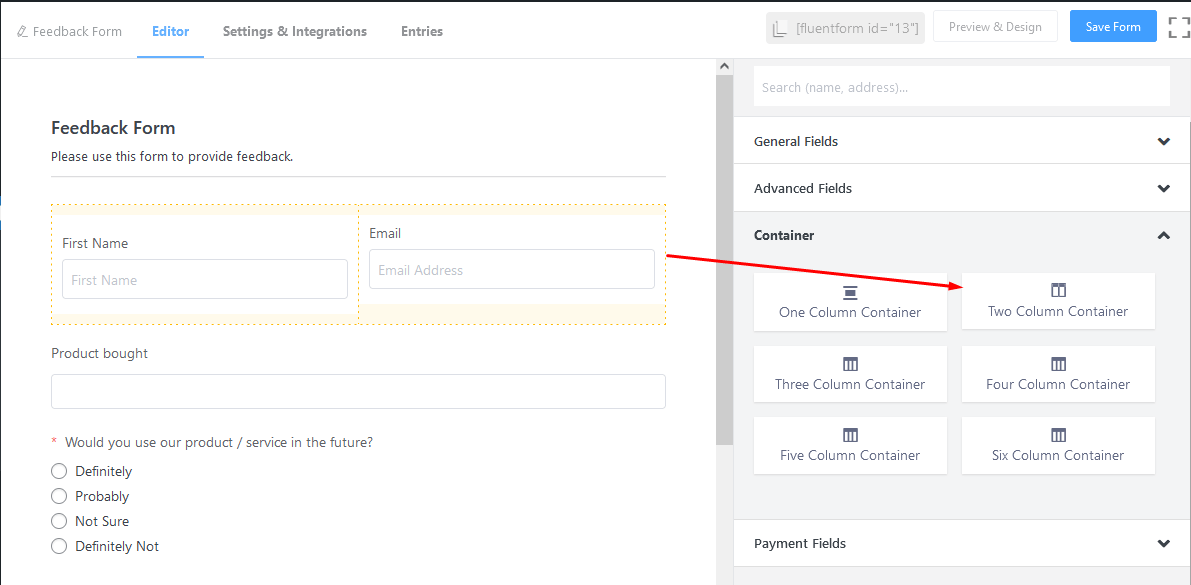
Free users get to use conditional logic in all forms except conversational forms.
Conditional logic is helpful when you want a field to be show up based on a condition.
e.g. you want feedback reason to appear, when the user provides on star rating (worst rating).
Redirection after submit
For redirection after submit, you have 3 Options to choose from
Same Page: Stay on the same page.
To a Page: Redirect to a different page on the Website itself. You can add a message which will be shown after the form submission for a while, before redirecting to the page.
To a custom URL: Any URL you wish the page to redirect to.
In each case, you can add a message to show after the form submit. Input shortcodes like name, first name, email, etc can be added to the message to make it personalized. When there is no redirection, the message stays. But in case of redirection to a different page, the user sees the message for a while before reaching the new page.
Scheduling & Restrictions
You can enable your form only for a duration you like
e.g. particular days/period, or even for a fixed number of submissions.
This feature is useful when you want to accept inputs only during an event or allow (say) the first 20 users.
PDF download
Fluent Forms provides you an option to download the filled-in form as a PDF. Though free, this is not available by default.
You need another (free) plugin, which is suggested by Fluent Forms for this feature.
You can configure how your PDF looks for each form input.
You get three sections for designing the PDF - Header, Body & Footer.
The header is the PDF title, body will have all the content & in the footer, you can add date, page number, etc.
For each entry form generates a PDF. You can download it from Entry Details section of the form.
Email Notifications
This setting allows you to receive an email when the user submits the form. Each form can have many email notifications.
User inputs are available as shortcodes. You can use these shortcodes in the email for formatting the message.
The PDF of the form (with user inputs) can also be attached with the email.
Custom CSS and JS
Fluent Forms allow you to write own custom CSS to each form individually.
Form Entries
You can view form entries as a table in compact & detailed view. Each entry can be marked as Read or Unread.
When you view individual entry, it is presented nicely.
Not just formatted input data, but you get meta data like IP Address, Browser, OS and date too. You can add multiple notes with each entry for your reference.
Once the form is created, you can use form shortcode to embed the form on any page.
Some points to know
- You delete a form, and all the associated entries are deleted.
- Form preview shows the preview of the saved form. If you make changes & don’t save, the preview will not show new changes.
Features not available to free users
- Phone Field & Ratings Field not available
- File or image upload is not possible
- Conditional logic on Conversational Form is available only in Pro
- Conditional logic on email is available only in Pro
- Design Customization (Colors) is only available on Pro Version of Fluent Forms.
- Cannot accept payments using the form
- Only Mailchimp & slack can be integrated for free users. Other integrations like Campaign monitor, Constant Contact,
- Convertkit, GetResponse, iContact, MooSend, SendFox, MailerLite, SendInBlue and Drip, etc., are not available to free users.
- Zapier & Webooks integration too are not available to free users.
What I don’t like about WP Fluent Forms?
As a free form plugin, the features it provides, I can only thank them.
I have nothing to complain about this free plugin.
What I like about WP Fluent Forms?
- Conversational Form
- Free users get support
- Conditional logic is available in the forms (all, except Conversational forms).
Reasons to upgrade to paid WP Fluent Forms
You may want to know, if you are getting so many features in the free Fluent Forms, why should you upgrade & pay for WP Fluent Forms. Reasons for upgrade can be:
- Payment through forms
- Extra form fields like ratings, Phone field and more
- Conditional logic in Conversational forms & Email
- File & Image upload
- Advanced form styler
- More form templates
- More integrations like Zapier, HubSpot, Aweber, GetResponse, Sendinblue, drip, Webhooks, etc. and more
To explore buing the Pro version of Fluent Forms, click here
Conclusion
WP Fluent forms is indeed a great form. The feature of building Typeform style forms aka Conversational Forms, for free, makes it indeed useful. If you are looking for conversation style forms for free, just go for WP Fluent Forms.
And, if you want more features, WP Fluent forms is one of the cheapest forms with so may features. In fact, this is the only some of the forms which comes with Lifetime deal.
Go here for the discount on WP Fluent Forms.
You can use Fluent Forms on your client’s website, and charge them extra money.